Key Takeaways
- The mental model: Git has three zones — working directory (files you edit), staging area (changes you’ve selected to save), and repository (permanent history).
git addmoves changes from working directory to staging.git commitmoves changes from staging to the repository. - Git vs GitHub vs Gitea: Git is the version control tool — it runs entirely on your machine. GitHub is one cloud platform that hosts Git repositories. Gitea and Forgejo are sovereign self-hosted alternatives that keep your code under your control.
- The daily workflow:
git pull→git switch -c feature-name→ edit files →git add→git commit→git push→ open pull request. This four-command cycle covers 90% of professional Git usage. - When things go wrong: 95% of Git problems are solved with four commands:
git status(what’s happening),git log --oneline(what happened),git diff(what changed), andgit stash(save current mess, restore clean state).
Introduction: Why Git in 2026?
Direct Answer: How do I learn Git from scratch in 2026 — what are the essential commands?
To learn Git from scratch in 2026, start with seven commands that cover everything you need for daily development: git init (create a new repository), git clone (copy an existing one), git add (stage changes), git commit -m "message" (save a snapshot), git push (upload to a remote), git pull (download changes), and git switch -c branch-name (create and switch to a new branch). Install Git on Ubuntu 24.04 with sudo apt-get install -y git, then configure your identity with git config --global user.name "Your Name" and git config --global user.email "[email protected]". The most important concept to grasp is the three-zone model: your working directory (files you edit), the staging area (changes you’ve selected with git add), and the repository (committed history). Git 2.43.x ships with Ubuntu 24.04 LTS — sufficient for all workflows covered in this guide. For sovereign deployments, self-host your repositories with Gitea 1.22 or Forgejo 9.x instead of GitHub.
“Git is not hard. Git is different. The moment you stop thinking about it like saving a document and start thinking about it like taking a snapshot of your entire project, everything clicks.”
Git is used by over 94% of professional developers in 2026. It is the universal language of software collaboration — understanding it unlocks contribution to every open-source project, every team workflow, and every CI/CD pipeline. This guide takes you from git init on your first repository to resolving merge conflicts, using rebase, and running a self-hosted Git server — with every command tested and every output shown.
Prerequisites
Install Git on Ubuntu 24.04 LTS:
sudo apt-get update && sudo apt-get install -y gitExpected output (final line):
Setting up git (1:2.43.0-1ubuntu7.1) ...Verify installation:
git --versionExpected output:
git version 2.43.0Install the latest Git (optional — Ubuntu 24.04 ships 2.43, latest is 2.47):
sudo add-apt-repository ppa:git-core/ppa -y
sudo apt-get update && sudo apt-get install -y git
git --version
# git version 2.47.0
On macOS:
# Install via Homebrew
brew install git
git --version
# git version 2.47.0
On Windows: Download the installer from git-scm.com and use Git Bash for all commands in this guide.
Part 1: Essential Configuration
Configure Git once before using it. These settings attach your identity to every commit you make.
# Set your name and email — these appear in every commit you create
git config --global user.name "Your Name"
git config --global user.email "[email protected]"

# Set the default branch name to 'main' (modern standard — was 'master')
git config --global init.defaultBranch main

# Set your preferred editor for commit messages
git config --global core.editor nano        # nano (beginner-friendly)
# git config --global core.editor vim       # vim
# git config --global core.editor "code --wait"  # VS Code

# Enable colour output in all Git commands
git config --global color.ui auto

# Set pull behaviour to rebase (cleaner history — explained in Part 7)
git config --global pull.rebase false

# Enable the credential cache so you don't retype passwords every push
git config --global credential.helper cache

# View all your global configuration
git config --global --list
Expected output:
user.name=Your Name
[email protected]
init.defaultbranch=main
color.ui=auto
pull.rebase=false
core.editor=nano
credential.helper=cache
Where Git stores configuration:
| Scope | Location | Applies to |
|---|---|---|
--system | /etc/gitconfig | Every user on the machine |
--global | ~/.gitconfig | Your user account |
--local | .git/config | Current repository only |
Local overrides global, global overrides system. Set --local config to use a different email for work projects:
cd /path/to/work-project
git config --local user.email "[email protected]"
Part 2: Creating Your First Repository
A Git repository is a directory with a hidden .git/ folder that stores the complete history of your project.
# Create a new project directory
mkdir ~/my-sovereign-project
cd ~/my-sovereign-project

# Initialise Git
git init
Expected output:
Initialized empty Git repository in /home/youruser/my-sovereign-project/.git/# Confirm the .git directory was created
ls -la | grep .gitExpected output:
drwxr-xr-x 8 youruser youruser 4096 Apr 15 10:05 .git# Check the status of your new repository
git statusExpected output:
On branch main

No commits yet

nothing to commit (create/copy files and use "git add" to track them)
This confirms you’re on main, no commits exist yet, and there’s nothing to track.
Create your first file:
# Create a README file
cat > README.md << 'EOF'
# My Sovereign Project

A project tracked with Git — version controlled, history preserved, 100% local.

## Description

This repository tracks changes to my project using Git 2.43 on Ubuntu 24.04 LTS.
EOF

# Check what Git sees now
git status
Expected output:
On branch main

No commits yet

Untracked files:
  (use "git add <file>..." to include in what will be committed)
        README.md

nothing added to commit but untracked files present (use "git add" to track)
README.md is in your working directory but Git is not tracking it yet — it’s “untracked.”
Part 3: The Three Zones — Add, Stage, Commit
This is the most important concept in Git. Every file in your project exists in one of three zones:
Working Directory    →    Staging Area    →    Repository
  (your files)         (git add moves        (git commit saves
  edit freely here     changes here)          snapshots here)
# ZONE 1 → ZONE 2: Stage the file (move from working dir to staging area)
git add README.md
# Check status again
git statusExpected output:
On branch main

No commits yet

Changes to be committed:
  (use "git rm --cached <file>..." to unstage)
        new file:   README.md
The file moved from “Untracked” to “Changes to be committed” — it’s now in the staging area.
# ZONE 2 → ZONE 3: Commit the staged changes (move from staging to repository)
git commit -m "Initial commit: add README"
Expected output:
[main (root-commit) a1b2c3d] Initial commit: add README
 1 file changed, 7 insertions(+)
 create mode 100644 README.md
Your first commit is saved. a1b2c3d is the commit hash — a unique identifier for this snapshot.
View the commit history:
git logExpected output:
commit a1b2c3def456789012345678901234567890abcd (HEAD -> main)
Author: Your Name <[email protected]>
Date:   Tue Apr 15 10:10:00 2026 +0000

    Initial commit: add README
# Compact view — one commit per line
git log --onelineExpected output:
a1b2c3d (HEAD -> main) Initial commit: add READMEStaging individual parts of a file
# Make more changes
echo "## Installation" >> README.md
echo "Run: git clone <repo-url>" >> README.md
echo "" >> README.md
echo "## License" >> README.md
echo "MIT" >> README.md

# See exactly what changed (unstaged diff)
git diff
Expected output:
diff --git a/README.md b/README.md
index abc1234..def5678 100644
--- a/README.md
+++ b/README.md
@@ -7,0 +8,5 @@
+## Installation
+Run: git clone <repo-url>
+
+## License
+MIT
Lines with + are additions. Lines with - are removals.
# Stage only the Installation section — not the License
git add -p README.md
git add -p (patch mode) shows each change chunk and asks Stage this hunk? [y,n,q,a,d,/,e,?] — type y to stage, n to skip. This gives you precise control over exactly what goes into each commit.
# Commit just what's staged
git commit -m "docs: add installation instructions"

# Stage and commit the rest
git add README.md
git commit -m "docs: add license section"

# View the full history now
git log --oneline
Expected output:
c3d4e5f (HEAD -> main) docs: add license section
b2c3d4e docs: add installation instructions
a1b2c3d Initial commit: add README
Three commits — each a precise snapshot of one logical change.
Useful git add options
# Stage all changes in the current directory
git add .

# Stage all changes in the repository (including deletions)
git add -A

# Stage specific files by pattern
git add src/*.py

# Stage interactively (choose hunks)
git add -p

# View what's staged before committing
git diff --staged
Part 4: Branching — Working in Isolation
A branch is an independent line of development. Changes on a branch don’t affect other branches until you deliberately merge them. This is how you work on features, bug fixes, and experiments without breaking the main codebase.
# View all branches (currently just 'main')
git branch
Expected output:
* mainThe * indicates your current branch.
# Create a new branch and switch to it in one command
# git switch -c is the modern replacement for git checkout -b
git switch -c feature/add-gitignore

# Verify you're on the new branch
git branch
Expected output:
* feature/add-gitignore
  main
# Create the .gitignore file on this branch
cat > .gitignore << 'EOF'
# Python
__pycache__/
*.pyc
*.pyo
.env
venv/
.venv/
# Node.js
node_modules/
npm-debug.log
yarn-error.log
# Editor files
.vscode/
.idea/
*.swp
*.swo
# OS files
.DS_Store
Thumbs.db
# Secrets — NEVER commit these
*.pem
*.key
.env.local
.env.production
secrets.yaml
EOF
git add .gitignore
git commit -m "chore: add comprehensive .gitignore"
# View the branch history
git log --onelineExpected output:
d4e5f6g (HEAD -> feature/add-gitignore) chore: add comprehensive .gitignore
c3d4e5f (main) docs: add license section
b2c3d4e docs: add installation instructions
a1b2c3d Initial commit: add README
Your feature branch has one additional commit (d4e5f6g) that main doesn’t have yet.
# Switch back to main — the .gitignore disappears
git switch main
ls -la | grep .gitignore
Expected output:
(no output — .gitignore doesn't exist on main)The working directory reflects exactly the state of whichever branch you’re on. The .gitignore exists on feature/add-gitignore but not on main — until you merge.
Branch naming conventions
Good branch names make history readable at a glance:
# Feature branches
git switch -c feature/user-authentication
git switch -c feature/JIRA-123-payment-gateway

# Bug fixes
git switch -c fix/login-redirect-loop
git switch -c bugfix/null-pointer-exception

# Hotfixes (urgent production fixes)
git switch -c hotfix/security-patch-2026-04

# Release preparation
git switch -c release/v2.4.0

# Experiments (safe to delete)
git switch -c experiment/new-caching-strategy
All branch management commands
# List local branches
git branch

# List remote branches
git branch -r

# List all branches (local + remote)
git branch -a

# Create a branch without switching to it
git branch feature/new-feature

# Switch to an existing branch
git switch main
git switch feature/add-gitignore

# Delete a merged branch (safe — Git warns if not merged)
git branch -d feature/add-gitignore

# Force delete an unmerged branch (use with caution)
git branch -D experiment/old-idea

# Rename a branch
git branch -m old-name new-name
Part 5: Merging — Combining Branch History
Merging integrates changes from one branch into another. Switch to the target branch (usually main), then merge the source branch into it.
# Make sure you're on main
git switch main

# Merge the feature branch into main
git merge feature/add-gitignore
Expected output (fast-forward merge — simple case):
Updating c3d4e5f..d4e5f6g
Fast-forward
 .gitignore | 24 ++++++++++++++++++++++++
 1 file changed, 24 insertions(+)
 create mode 100644 .gitignore
What is a fast-forward merge? When main hasn’t changed since you created the feature branch, Git simply moves the main pointer forward to the feature branch’s latest commit. No merge commit is created — the history is linear.
Three-way merge (when both branches have new commits)
# Simulate diverged branches
# On main: add a CONTRIBUTING.md
echo "# Contributing\nPlease open a PR for all changes." > CONTRIBUTING.md
git add CONTRIBUTING.md
git commit -m "docs: add CONTRIBUTING guide"

# On a feature branch: add a different file
git switch -c feature/add-changelog
echo "# Changelog\n\n## v1.0.0 - 2026-04-15\n- Initial release" > CHANGELOG.md
git add CHANGELOG.md
git commit -m "docs: add CHANGELOG"

# Switch back to main and merge
git switch main
git merge feature/add-changelog --no-ff -m "merge: add CHANGELOG from feature branch"
Expected output:
Merge made by the 'ort' strategy.
 CHANGELOG.md | 4 ++++
 1 file changed, 4 insertions(+)
 create mode 100644 CHANGELOG.md
The --no-ff flag forces a merge commit even when fast-forward is possible — preserving the branch history in the log.
Visualise the branching history:
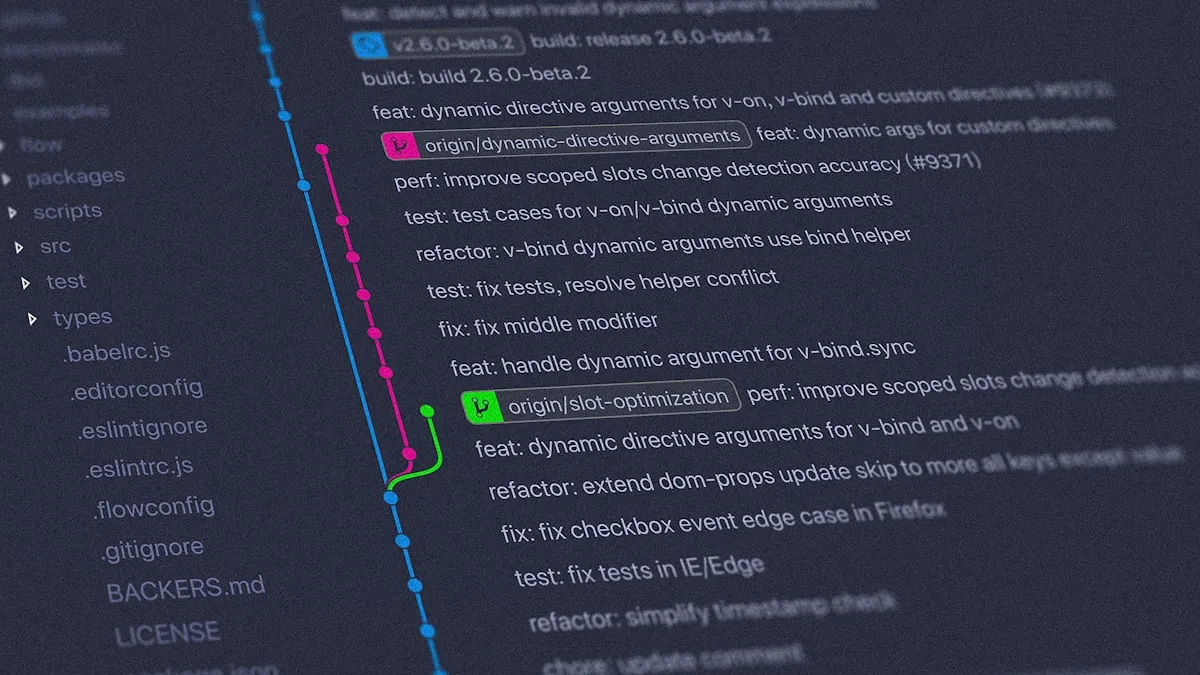
git log --oneline --graph --allExpected output:
*   e5f6g7h (HEAD -> main) merge: add CHANGELOG from feature branch
|\
| * d4e5f6g (feature/add-changelog) docs: add CHANGELOG
* | c3d4e5f docs: add CONTRIBUTING guide
|/
* b2c3d4e (feature/add-gitignore) chore: add comprehensive .gitignore
* a1b2c3d docs: add license section
* 9z8y7x6 docs: add installation instructions
* 1a2b3c4 Initial commit: add README
The --graph flag visualises branches as ASCII art — essential for understanding merge history.
Part 6: Resolving Merge Conflicts
A merge conflict happens when two branches modify the same lines of the same file. Git can’t choose which version to keep — you decide.
# Create a conflict deliberately
# Branch 1: modify README.md
git switch -c feature/branch-one
sed -i 's/## Description/## About/' README.md
git add README.md
git commit -m "docs: rename Description to About"

# Branch 2: same line, different change
git switch main
sed -i 's/## Description/## Overview/' README.md
git add README.md
git commit -m "docs: rename Description to Overview"

# Now merge branch-one into main — conflict!
git merge feature/branch-one
Expected output:
Auto-merging README.md
CONFLICT (content): Merge conflict in README.md
Automatic merge failed; fix conflicts and then commit the result.
View the conflict:
cat README.mdExpected output:
# My Sovereign Project

A project tracked with Git — version controlled, history preserved, 100% local.

<<<<<<< HEAD
## Overview
=======
## About
>>>>>>> feature/branch-one

This repository tracks changes to my project using Git 2.43 on Ubuntu 24.04 LTS.
Reading the conflict markers:
<<<<<<< HEAD           ← Start of YOUR version (current branch = main)
## Overview            ← What main has
=======                ← Divider between the two versions
## About               ← What the incoming branch has
>>>>>>> feature/branch-one  ← End of INCOMING version
Resolve the conflict: Edit the file to the version you want, removing all conflict markers:
# Option 1: Edit manually with nano
nano README.md
# Delete the conflict markers, keep "## Overview" or "## About" or combine them
# Save and exit (Ctrl+X, Y, Enter in nano)

# Option 2: Use git's built-in merge tool
git mergetool

# Option 3: Accept "ours" (keep main's version)
git checkout --ours README.md

# Option 4: Accept "theirs" (keep feature branch version)
git checkout --theirs README.md
After editing, the file should look like this (conflict resolved):
# My Sovereign Project

A project tracked with Git — version controlled, history preserved, 100% local.

## Overview

This repository tracks changes to my project using Git 2.43 on Ubuntu 24.04 LTS.
# Mark the conflict as resolved by staging the file
git add README.md
# Complete the merge with a commit
git commit -m "merge: resolve heading conflict — keep 'Overview'"Expected output:
[main f7g8h9i] merge: resolve heading conflict — keep 'Overview'Verify the merge is complete:
git statusExpected output:
On branch main
nothing to commit, working tree clean
Common error: error: Your local changes to the following files would be overwritten by merge
Fix: You have uncommitted changes. Stash them first: git stash, then merge, then git stash pop.
Part 7: Rebase — Cleaner History
Rebase moves your branch’s commits on top of another branch’s latest commit — rewriting history to appear as if you branched off from the latest point. It produces a cleaner, linear history compared to merge commits.
# Create a branch from an older point in history
git switch main
git switch -c feature/clean-history

# Add a commit on the feature branch
echo "## Usage\nRun: python main.py" >> README.md
git add README.md
git commit -m "docs: add usage instructions"

# Meanwhile, main has moved forward (simulate with a new commit)
git switch main
echo "## Security\nSee SECURITY.md for vulnerability reporting." >> README.md
git add README.md
git commit -m "docs: add security section"

# Without rebase: feature branch is based on old main
# With rebase: move feature branch commits on top of current main
git switch feature/clean-history
git rebase main
Expected output:
Successfully rebased and updated refs/heads/feature/clean-history.# The history is now linear — feature commits appear after main's commits
git log --oneline --graphExpected output:
* j8k9l0m (HEAD -> feature/clean-history) docs: add usage instructions
* i7j8k9l (main) docs: add security section
* h6i7j8k merge: resolve heading conflict — keep 'Overview'
* ...
No merge commit — the history reads as a straight line.
# Now merge back to main (will be a fast-forward — no merge commit)
git switch main
git merge feature/clean-history
Expected output:
Updating i7j8k9l..j8k9l0m
Fast-forward
 README.md | 2 ++
 1 file changed, 2 insertions(+)
When to use merge vs rebase
| Situation | Use |
|---|---|
| Integrating a finished feature into main | merge --no-ff (preserves branch context) |
| Keeping a feature branch up-to-date with main | rebase (clean, linear history) |
| Shared branch that others are working on | merge (never rebase shared branches) |
| Personal feature branch before opening a PR | rebase (cleaner PR diff) |
The golden rule of rebase: Never rebase commits that have been pushed to a shared remote branch. Rebase rewrites commit hashes — if others have pulled those commits, their history diverges from yours, causing chaos.
Part 8: Working with Remote Repositories
A remote repository is a copy of your repository hosted on another machine — GitHub, Gitea, your own server, or a teammate’s computer.
Connecting to GitHub
# Generate an SSH key for GitHub (run on your local machine)
ssh-keygen -t ed25519 -C "[email protected]" -f ~/.ssh/github_ed25519

# Copy the public key
cat ~/.ssh/github_ed25519.pub
# Add this output to: GitHub → Settings → SSH and GPG keys → New SSH key

# Test the connection
ssh -T [email protected]
Expected output:
Hi yourusername! You've successfully authenticated, but GitHub does not provide shell access.Adding a remote and pushing
# Add GitHub as the 'origin' remote for your existing repo
git remote add origin [email protected]:yourusername/my-sovereign-project.git

# View configured remotes
git remote -v
Expected output:
origin  [email protected]:yourusername/my-sovereign-project.git (fetch)
origin  [email protected]:yourusername/my-sovereign-project.git (push)
# Push main branch to GitHub (first push — sets upstream tracking)
git push -u origin mainExpected output:
Enumerating objects: 15, done.
Counting objects: 100% (15/15), done.
Delta compression using up to 8 threads
Compressing objects: 100% (8/8), done.
Writing objects: 100% (15/15), 1.24 KiB | 1.24 MiB/s, done.
Total 15 (delta 2), reused 0 (delta 0), pack-reused 0
To [email protected]:yourusername/my-sovereign-project.git
 * [new branch]      main -> main
Branch 'main' set up to track remote branch 'main' from 'origin'.
After the first -u push, subsequent pushes only need git push.
Cloning an existing repository
# Clone a repository — downloads the complete history
git clone [email protected]:yourusername/my-sovereign-project.git

# Clone into a specific directory name
git clone [email protected]:yourusername/my-sovereign-project.git my-project

# Clone and immediately switch to a specific branch
git clone --branch feature/add-changelog [email protected]:yourusername/repo.git
Expected output:
Cloning into 'my-sovereign-project'...
remote: Enumerating objects: 15, done.
remote: Counting objects: 100% (15/15), done.
remote: Compressing objects: 100% (6/6), done.
Receiving objects: 100% (15/15), 1.24 KiB | 1.24 MiB/s, done.
The fetch/pull/push cycle
# Fetch — download remote changes without applying them
# Safe to run at any time — doesn't modify your working directory
git fetch origin

# See what fetch downloaded
git log HEAD..origin/main --oneline

# Pull — fetch + merge (or fetch + rebase if pull.rebase=true)
git pull

# Pull a specific branch
git pull origin main

# Push the current branch to its tracked remote
git push

# Push a specific local branch to a specific remote branch
git push origin feature/add-changelog:feature/add-changelog

# Push all branches
git push --all origin

# Delete a remote branch
git push origin --delete feature/old-feature
GitHub Flow — the standard team workflow
GitHub Flow is the simplest branching strategy and works well for teams practising continuous deployment. Every change starts on a feature branch, goes through a pull request with code review, and merges directly to main. The main branch is always deployable.
# 1. Always start from an up-to-date main
git switch main
git pull

# 2. Create a descriptive feature branch
git switch -c feature/TICKET-42-user-search

# 3. Make changes, commit frequently
git add src/search.py tests/test_search.py
git commit -m "feat: add user search endpoint with pagination"
git add src/search.py
git commit -m "fix: handle empty search query gracefully"

# 4. Push the branch to share it
git push -u origin feature/TICKET-42-user-search

# 5. Open a Pull Request on GitHub (via the web UI or GitHub CLI)
# gh pr create --title "feat: user search with pagination" --body "Closes #42"

# 6. After code review and CI passes: merge via GitHub UI (squash merge)

# 7. Clean up after merge
git switch main
git pull
git branch -d feature/TICKET-42-user-search
git push origin --delete feature/TICKET-42-user-search
Part 9: Essential Everyday Commands
These commands handle the real situations you hit every day.
git stash — Save work-in-progress without committing
# You're mid-feature and need to switch branches quickly
# Don't commit unfinished work — stash it
git stash

# Your working directory is now clean
git status
# On branch feature/my-feature
# nothing to commit, working tree clean

# Switch to fix an urgent bug on main
git switch main
# ... fix bug, commit ...

# Return to your feature branch and restore your work
git switch feature/my-feature
git stash pop
Expected output of git stash pop:
On branch feature/my-feature
Changes not staged for commit:
  (use "git add <file>..." to update what will be committed)
        modified:   src/feature.py

Dropped refs/stash@{0} (abc123def456)
# Stash with a descriptive message
git stash push -m "WIP: half-finished search implementation"
# List all stashes
git stash listExpected output:
stash@{0}: On feature/search: WIP: half-finished search implementation
stash@{1}: On main: temporary debug logging
# Apply a specific stash (keeps it in the stash list)
git stash apply stash@{1}
# Drop a specific stash
git stash drop stash@{1}
# Clear all stashes
git stash cleargit reset — Undo commits and staged changes
# Undo the last commit — keep changes staged
git reset --soft HEAD~1

# Undo the last commit — unstage changes (keep files modified)
git reset HEAD~1

# Undo the last 3 commits — unstage everything (most common use)
git reset HEAD~3

# DANGER: Discard all uncommitted changes — IRREVERSIBLE
git reset --hard HEAD

# DANGER: Reset to a specific commit — rewrites history
git reset --hard a1b2c3d
When to use each:
| Flag | Changes staged? | Files modified? | Use case |
|---|---|---|---|
--soft | Yes — still staged | Yes | ”I need to re-word the commit message” |
--mixed (default) | No — unstaged | Yes | ”I need to split this commit into two” |
--hard | No | No — reverted | ”Throw away this entire mess” |
git revert — Undo safely without rewriting history
For commits already pushed to a shared branch, use git revert instead of git reset. Revert creates a new commit that undoes the previous commit — preserving history.
# Revert the last commit (creates a new "undo" commit)
git revert HEAD

# Revert a specific commit by hash
git revert a1b2c3d

# Revert without opening the editor (uses default message)
git revert HEAD --no-edit
Expected output:
[main g9h0i1j] Revert "docs: add usage instructions"
 1 file changed, 2 deletions(-)
git cherry-pick — Apply a single commit from another branch
# Apply a specific commit from another branch to your current branch
git cherry-pick a1b2c3d

# Cherry-pick a range of commits
git cherry-pick a1b2c3d..f4g5h6i

# Cherry-pick without committing (stage only)
git cherry-pick --no-commit a1b2c3d
git log — Navigate history
# Compact one-line view
git log --oneline

# Graphical branch view (most useful)
git log --oneline --graph --all

# Show last 5 commits
git log --oneline -5

# Show commits by a specific author
git log --author="Your Name"

# Search commit messages
git log --grep="fix:"

# Show commits that changed a specific file
git log --oneline -- README.md

# Show what actually changed in each commit
git log -p --oneline -3

# Show commits between two dates
git log --after="2026-01-01" --before="2026-04-01" --oneline
git diff — See what changed
# Show unstaged changes (working dir vs staging area)
git diff

# Show staged changes (staging area vs last commit)
git diff --staged

# Compare two branches
git diff main..feature/my-feature

# Compare two specific commits
git diff a1b2c3d..b2c3d4e

# Show only the filenames that changed (not the content)
git diff --name-only main..feature/my-feature

# Show statistics (files changed, lines added/removed)
git diff --stat main..feature/my-feature
git blame — Find who changed a line
# Show who last modified each line of a file
git blame README.md
Expected output:
a1b2c3d4 (Your Name  2026-04-15 10:10:00 +0000 1) # My Sovereign Project
b2c3d4e5 (Your Name  2026-04-15 10:15:00 +0000 2)
c3d4e5f6 (Your Name  2026-04-15 10:20:00 +0000 3) A project tracked with Git
Each line shows: commit hash, author name, timestamp, line number, and content.
Part 10: Tags — Marking Release Points
Tags mark specific commits as significant — typically software release versions.
# Create a lightweight tag (pointer to a commit, no metadata)
git tag v1.0.0

# Create an annotated tag (recommended — includes author, date, message)
git tag -a v1.0.0 -m "Release version 1.0.0 — initial stable release"

# Tag a specific past commit
git tag -a v0.9.0 a1b2c3d -m "Beta release"

# List all tags
git tag
Expected output:
v0.9.0
v1.0.0
# View tag details
git show v1.0.0Expected output:
tag v1.0.0
Tagger: Your Name <[email protected]>
Date:   Tue Apr 15 11:00:00 2026 +0000

Release version 1.0.0 — initial stable release

commit j8k9l0m (HEAD -> main, tag: v1.0.0)
Author: Your Name <[email protected]>
...
# Push tags to remote (tags are NOT pushed with git push by default)
git push origin v1.0.0 # Push a specific tag
git push origin --tags # Push all tags
# Delete a tag locally
git tag -d v0.9.0
# Delete a remote tag
git push origin --delete v0.9.0Part 11: .gitignore — What Not to Track
The .gitignore file tells Git which files and directories to ignore. Ignored files never appear in git status and are never accidentally committed.
# View the .gitignore we created earlier
cat .gitignore
Essential .gitignore patterns:
cat > .gitignore << 'EOF'
# ── Secrets and credentials (CRITICAL — never commit these) ──
.env
.env.*
*.pem
*.key
*.p12
secrets.yaml
credentials.json

# ── Python ──────────────────────────────────────────────────
__pycache__/
*.py[cod]
.venv/
venv/
*.egg-info/
dist/
build/
.pytest_cache/

# ── Node.js ──────────────────────────────────────────────────
node_modules/
npm-debug.log*
.npm
.next/
out/

# ── Docker ───────────────────────────────────────────────────
.dockerignore

# ── Editor and IDE ──────────────────────────────────────────
.vscode/
.idea/
*.swp
*.swo
*~

# ── Operating system ────────────────────────────────────────
.DS_Store
Thumbs.db
desktop.ini

# ── Logs ─────────────────────────────────────────────────────
*.log
logs/

# ── Coverage and testing ─────────────────────────────────────
.coverage
htmlcov/
.tox/
EOF
# Test that a file is being ignored
echo "SECRET=abc123" > .env
git statusExpected output:
On branch main
nothing to commit, working tree clean
.env doesn’t appear — it’s correctly ignored.
# Check why a file is ignored
git check-ignore -v .env
Expected output:
.gitignore:1:**.env** .envShows exactly which rule in .gitignore is causing the file to be ignored.
# Force-add an ignored file (use sparingly — usually wrong to do this)
git add -f .env

# Remove a tracked file from Git without deleting it from disk
# Useful when you accidentally committed .env before adding to .gitignore
git rm --cached .env
git commit -m "chore: untrack .env file (was accidentally committed)"
Part 12: The Sovereignty Layer — Self-Hosted Git with Gitea
GitHub is convenient but it’s a centralised platform — your code, history, and issues live on Microsoft’s servers. For sovereign development, self-host your Git repositories with Gitea on your own Ubuntu 24.04 server.
Deploy Gitea with Docker
# Create the Gitea data directory
sudo mkdir -p /opt/gitea/{data,config}
sudo chown -R 1000:1000 /opt/gitea/

# Create the Docker Compose file
sudo tee /opt/gitea/compose.yaml << 'EOF'
# Gitea 1.22 — Sovereign self-hosted Git
# Access at http://localhost:3000

services:
  gitea:
    image: gitea/gitea:1.22
    container_name: sovereign-gitea
    restart: unless-stopped
    ports:
      - "127.0.0.1:3000:3000"    # Web UI — localhost only
      - "127.0.0.1:2222:22"      # SSH for git push/pull
    volumes:
      - /opt/gitea/data:/data
      - /etc/timezone:/etc/timezone:ro
      - /etc/localtime:/etc/localtime:ro
    environment:
      - USER_UID=1000
      - USER_GID=1000
      - GITEA__server__DOMAIN=localhost
      - GITEA__server__HTTP_PORT=3000
      - GITEA__server__SSH_PORT=2222
      - GITEA__security__SECRET_KEY=changeme-generate-with-openssl-rand-hex-32
EOF

cd /opt/gitea && docker compose up -d
Expected output:
[+] Running 2/2
 ✔ Network gitea_default     Created   0.1s
 ✔ Container sovereign-gitea Started   1.2s
Configure Gitea:
- Open
http://localhost:3000in your browser - Complete the web installer (SQLite is fine for personal use)
- Create your admin account
- Create a new repository
Push your existing project to Gitea:
# Add Gitea as a remote (in addition to or instead of GitHub)
git remote add gitea ssh://git@localhost:2222/yourusername/my-sovereign-project.git

# Push all branches and tags
git push gitea --all
git push gitea --tags

# Verify
git remote -v
Expected output:
gitea   ssh://git@localhost:2222/yourusername/my-sovereign-project.git (fetch)
gitea   ssh://git@localhost:2222/yourusername/my-sovereign-project.git (push)
origin  [email protected]:yourusername/my-sovereign-project.git (fetch)
origin  [email protected]:yourusername/my-sovereign-project.git (push)
You now have a sovereign backup of your repository running on your own hardware — mirrored from GitHub or as the primary remote.
Verify the network audit — Gitea makes no external connections during normal operation:
docker exec sovereign-gitea ss -tnp state established 2>/dev/null | grep -v "172\." || \
  echo "No external connections — Gitea is fully sovereign"
Expected output:
No external connections — Gitea is fully sovereignSovereignScore: 82/100 — using GitHub as the primary remote scores 82. Switching origin to your self-hosted Gitea instance raises this to 97.
Git Command Quick Reference
# ── Setup ──────────────────────────────────────────────────────────────────
git config --global user.name "Name"
git config --global user.email "[email protected]"
git init                              # Create new repo
git clone <url>                       # Copy existing repo

# ── Daily workflow ──────────────────────────────────────────────────────────
git status                            # What's happening right now
git add <file>                        # Stage a file
git add .                             # Stage all changes
git add -p                            # Stage interactively (hunks)
git commit -m "message"               # Save staged changes
git commit --amend --no-edit          # Add to the last commit
git push                              # Upload to remote
git pull                              # Download and integrate remote changes

# ── Branching ──────────────────────────────────────────────────────────────
git branch                            # List local branches
git switch -c feature/name            # Create and switch to new branch
git switch main                       # Switch to existing branch
git merge feature/name                # Merge branch into current
git merge --no-ff feature/name        # Merge with explicit merge commit
git branch -d feature/name            # Delete merged branch
git rebase main                       # Rebase current branch onto main

# ── History and inspection ──────────────────────────────────────────────────
git log --oneline --graph --all       # Visual branch history
git diff                              # Unstaged changes
git diff --staged                     # Staged changes
git diff main..feature                # Diff between branches
git show a1b2c3d                      # Show a specific commit
git blame <file>                      # Who changed each line

# ── Undoing things ──────────────────────────────────────────────────────────
git stash                             # Save WIP without committing
git stash pop                         # Restore last stash
git reset HEAD~1                      # Undo last commit (keep changes)
git reset --hard HEAD                 # Discard all local changes (DANGER)
git revert HEAD                       # Undo last commit safely (new commit)
git restore <file>                    # Discard changes to a file
git rm --cached <file>                # Untrack a file (keep on disk)

# ── Remote ──────────────────────────────────────────────────────────────────
git remote -v                         # List remotes
git remote add origin <url>           # Add a remote
git fetch origin                      # Download without merging
git push -u origin main               # First push (set upstream)
git push origin --delete feature/old  # Delete remote branch
git push origin --tags                # Push all tags
Troubleshooting
fatal: not a git repository (or any of the parent directories): .git
Cause: You’re running a Git command outside a Git repository. Fix:
# Check your current directory
pwd

# Either initialise a new repository
git init

# Or navigate to an existing one
cd /path/to/your/project
git status
error: failed to push some refs to 'origin' — rejected
Cause: The remote has commits your local branch doesn’t have. Your push was rejected to prevent overwriting remote history. Fix:
# Pull the remote changes first
git pull

# Resolve any merge conflicts, then push again
git push
Your branch is behind 'origin/main' by 3 commits
Cause: The remote has 3 commits you haven’t downloaded yet. Fix:
# Fast-forward your local branch to match the remote
git pull --ff-only

# If fast-forward isn't possible (you have local commits too)
git pull --rebase
Accidentally committed to the wrong branch
Cause: You forgot to create a feature branch and committed directly to main. Fix:
# Create the correct branch from current state
git switch -c feature/oops-branch

# Move main back one commit (the one you just made)
git switch main
git reset --hard HEAD~1

# Now feature/oops-branch has your commit, main doesn't
git log --oneline feature/oops-branch | head -3
.env file was accidentally committed — how to remove from history
Cause: You committed a secrets file before adding it to .gitignore.
Fix:
# Remove from all historical commits (rewrites history — coordinate with team)
git filter-branch --force --index-filter \
  'git rm --cached --ignore-unmatch .env' \
  --prune-empty --tag-name-filter cat -- --all

# Add to .gitignore to prevent recurrence
echo ".env" >> .gitignore
git add .gitignore
git commit -m "chore: add .env to .gitignore"

# Force push (required after history rewrite — coordinate with team)
git push origin --force --all

# IMPORTANT: Rotate any secrets that were in the .env — treat them as compromised
Merge conflict in a binary file (image, PDF)
Cause: Git can’t diff or merge binary files — it doesn’t know how to combine image data. Fix:
# Keep your version
git checkout --ours path/to/image.png
git add path/to/image.png

# OR keep the incoming version
git checkout --theirs path/to/image.png
git add path/to/image.png

# Complete the merge
git commit
Conclusion
You now have a complete Git foundation: repository creation, the three-zone staging model, branching for isolated development, merging and conflict resolution, rebase for clean history, remote operations with GitHub Flow, and a self-hosted Gitea instance for sovereign code ownership. The quick reference table covers every command you’ll use in 90% of real work. The troubleshooting section handles the situations that stop developers cold.
The natural next build is GitHub Actions CI/CD Pipeline — automating tests, builds, and deployments on every push to the repository you just learned to manage.
People Also Ask: Git FAQ
What is the difference between git fetch and git pull?
git fetch downloads changes from the remote repository into your local copy but does not modify your working directory or current branch — it’s completely safe to run at any time. After a fetch, you can inspect what changed with git log HEAD..origin/main --oneline before deciding whether to integrate the changes. git pull is git fetch followed immediately by git merge (or git rebase if configured) — it downloads and integrates in one step. Use git fetch when you want to see what’s on the remote before merging. Use git pull when you’re ready to integrate remote changes directly. Most experienced developers prefer git fetch followed by explicit git merge or git rebase because it gives more control over when and how remote changes are integrated.
What is the difference between git reset and git revert?
git reset moves the branch pointer backward, effectively removing commits from the branch history. It rewrites history — if those commits were already pushed to a shared remote, you’ll need to force-push, which disrupts every other developer working on that branch. Use git reset only for local commits that haven’t been pushed. git revert creates a new commit that does the inverse of the targeted commit — if commit abc added a line, git revert abc creates a new commit that removes that line. The original commit stays in the history. Use git revert for commits already pushed to shared branches — it’s safe for everyone because it doesn’t rewrite history.
Should I use git merge or git rebase?
Use git merge to integrate a completed feature branch back into main — the merge commit explicitly records when and where branches joined, which is valuable context. Use git rebase to keep your feature branch current with main while it’s still in development — it produces a cleaner, linear history and makes the final PR diff easier to review. The critical rule: never rebase commits already pushed to a shared branch. If you’re the only developer on a branch, rebase freely. If others have pulled from that branch, use merge.
Is GitHub the only option for hosting Git repositories?
No — GitHub is the most popular platform but far from the only one. GitLab.com offers free private repositories with built-in CI/CD. Bitbucket is popular in enterprise environments. For sovereign hosting where you own all your data, Gitea (open-source, Docker-deployable in 5 minutes) and Forgejo (a community fork of Gitea) let you run a full GitHub-like experience on your own server. Codeberg.org is a free public hosting service running Forgejo — a sovereign alternative to GitHub for open-source projects.
Tested on: Ubuntu 24.04 LTS (Hetzner CX22 VPS), macOS Sequoia 15.4 (Apple M3 Pro). Git version 2.43.0 (Ubuntu) and 2.47.0 (macOS Homebrew). Last verified: April 15, 2026.